
Cronjob/Schedule is required for JoomGrabber to be run automatically. It can be set up to run as a script from the JoomGrabber Component Settings area. If you don't want to run it script-side, you can set it to run server-side by following this instruction.
The instruction below is for hosting with cPanel. For other control panels it is pretty much the same.
To setup a cronjob in cPanel, just follow 2 simple steps.
Step 1: Accessing cPanel
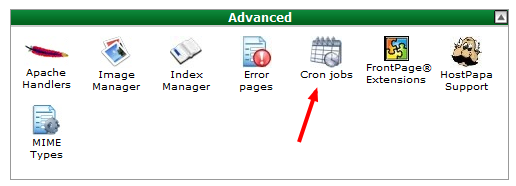
Setting up cronjobs in cPanel is really easy. All you need to do is to login to your cPanel account and click on the Cronjobs icon as shown in the diagram below.
Step 2: Creating the cronjob
Upon clicking on the cronjob icon, you will be presented with the following screen. You will need to enter the following.
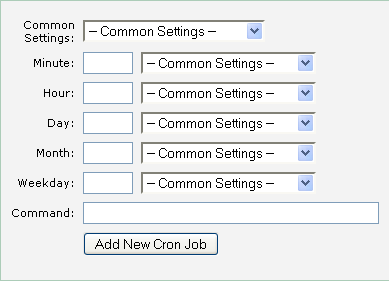
The settings are broken down into the following:
- Minute - Enter the interval for the minute. The example above uses "*/5", which means the command is executed every 5 minutes.
- Hour - Enter the interval for the hour. The example above uses "*", which means every hour.
- Day - Enter the interval for the day. The example above uses "*", which means every day.
- Month - Enter the interval for the month. The example above uses "*", which means every month.
- Weekday - Enter the interval for the weekday. The example above uses "*", which means every day of the week.
- Command - The command to run. Pick one of the two options below.
Option 1: Joomla command line (recommended)
JoomGrabber 6.1.6 and later add their commands to Joomla's own command line tool. This is the most reliable option: it runs PHP directly, so there is no HTTP request, no web server timeout and no secret key to configure.
/usr/bin/php /home/youruser/public_html/cli/joomla.php joomgrabber:run
Three things to adjust:
- The Console - JoomGrabber plugin must be enabled. It is enabled automatically when you install or update the package; you can confirm it under System → Plugins.
- Replace
/usr/bin/phpwith the PHP CLI binary your host provides. On cPanel this is often/usr/local/bin/phpor a version-specific path such as/opt/cpanel/ea-php82/root/usr/bin/php. The Cron Jobs screen usually shows the correct one. - Replace
/home/youruser/public_htmlwith the absolute path to your Joomla root folder.
To check that it works, run this from an SSH session in your Joomla root folder. It should list the JoomGrabber commands:
php cli/joomla.php list
Each call processes a limited amount of work and remembers where it stopped, so repeated calls make progress. The amount per call is controlled by Pipes Limit in JoomGrabber Options. On the command line there is no request timeout to worry about, so you can also ask it to work through the whole backlog in a single run, with a time budget in seconds:
/usr/bin/php /home/youruser/public_html/cli/joomla.php joomgrabber:run --drain --max-time=600
Two more commands are available, which are handy when testing a pipe or investigating a problem:
php cli/joomla.php joomgrabber:list
php cli/joomla.php joomgrabber:pipe:run 3 -v
joomgrabber:list shows your pipes with their ID, engine, adapter and schedule. joomgrabber:pipe:run runs a single pipe immediately, ignoring the schedule. Add -v to any command to see the full run log.
Upgrading from an older version? Releases before 6.1.6 used a separate script at cli/joomgrabber_cli.php. That script was built on a Joomla class that was removed in Joomla 6, so it stopped working there, and it has now been removed from the package. If your crontab still points at it, replace that line with the joomla.php joomgrabber:run command above. Updating JoomGrabber deletes the old script for you.
Option 2: Calling the cron URL (wget, curl or lynx)
If your host does not let you run PHP from cron, you can trigger JoomGrabber over HTTP instead.
A secret key is required for this method. Go to JoomGrabber → Options → Cronjob / Schedule and fill in Cronjob Secret key. If you leave it empty the request is refused with "Secret key is not configured. Please set a secret key in JoomGrabber Options.", and a wrong key is refused with "Invalid Secret Key". The key is what stops anyone on the internet from triggering your pipes.
Using wget:
/usr/bin/wget -O /dev/null "https://yourjoomlasite.com/index.php?option=com_joomgrabber&task=callaio&secretkey=your_secret_key_here"
Using curl:
/usr/bin/curl -s -o /dev/null "https://yourjoomlasite.com/index.php?option=com_joomgrabber&task=callaio&secretkey=your_secret_key_here"
Using lynx:
/usr/bin/lynx -dump "https://yourjoomlasite.com/index.php?option=com_joomgrabber&task=callaio&secretkey=your_secret_key_here"
Remember to replace yourjoomlasite.com with your own domain and your_secret_key_here with the key you set in the Options. You may also need to correct the path to the command: not every host has wget at /usr/bin/wget, and some have no wget at all, which is why the curl and lynx alternatives are listed. If one of them fails, try the next.
Which option should I use?
- Use Option 1 whenever you can run PHP from cron. It is faster, it is not limited by your web server's timeout, it needs no secret key, and any error is reported straight back to cron, so a failing pipe shows up in your cron email instead of passing unnoticed.
- Use Option 2 only when PHP on the command line is not available on your hosting.
Both options respect the same settings in JoomGrabber Options: Enable Cronjob / Schedule, Start At, Schedule and Pipes Limit. Set the cron interval a little shorter than your schedule so a run is always ready when a pipe becomes due.