
You can manage jobs, replies , custom fields and companies from administration quickly and easily, Log in to administration of your site and navigate to Components -> Easy Jobs Manager using the main menu, then you will see the left sidebar or quick nav widget.
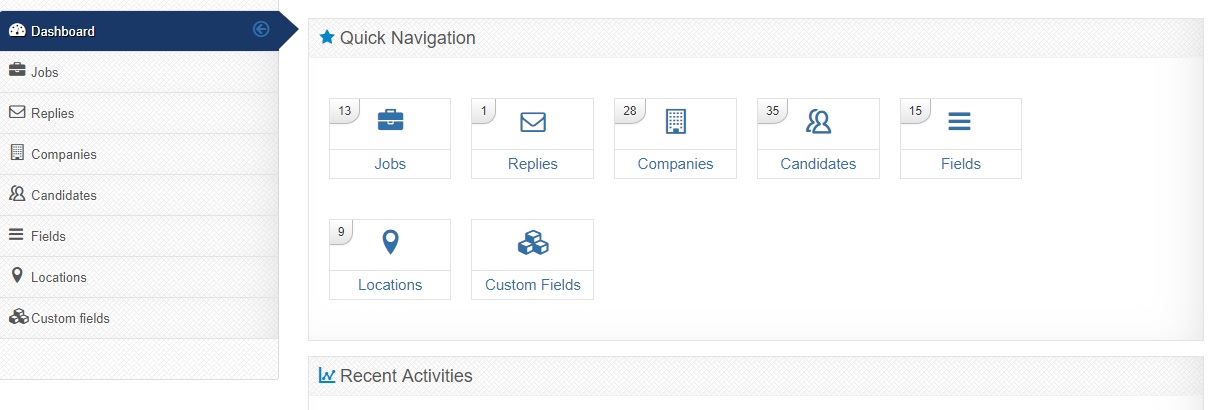
1) Jobs View
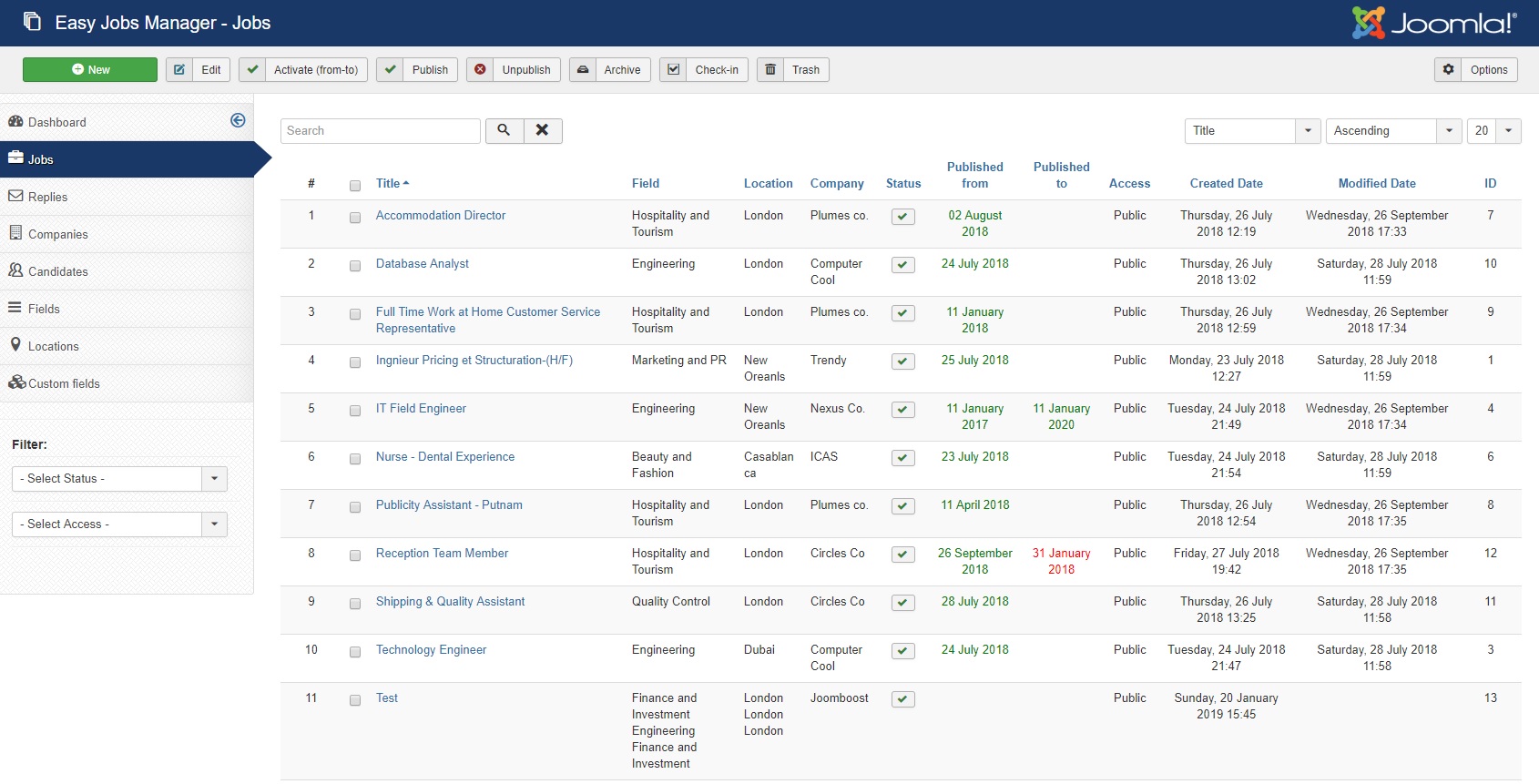
- this is a list of all jobs
- to create a job, you need to create at least one field, one location and one company first
Activate a job item
- A job ad needs to have publish from and publish down property set around actual date to be displayed on the frontend jobs list

- publishing dates can be set manually or for jobs without publish up date,
admin can use the Activate (from-to) button to set up publish up & down dates automatically from today for 31 days - there are 2 modes of activation (user/admin), see configuration in administration
2) Replies
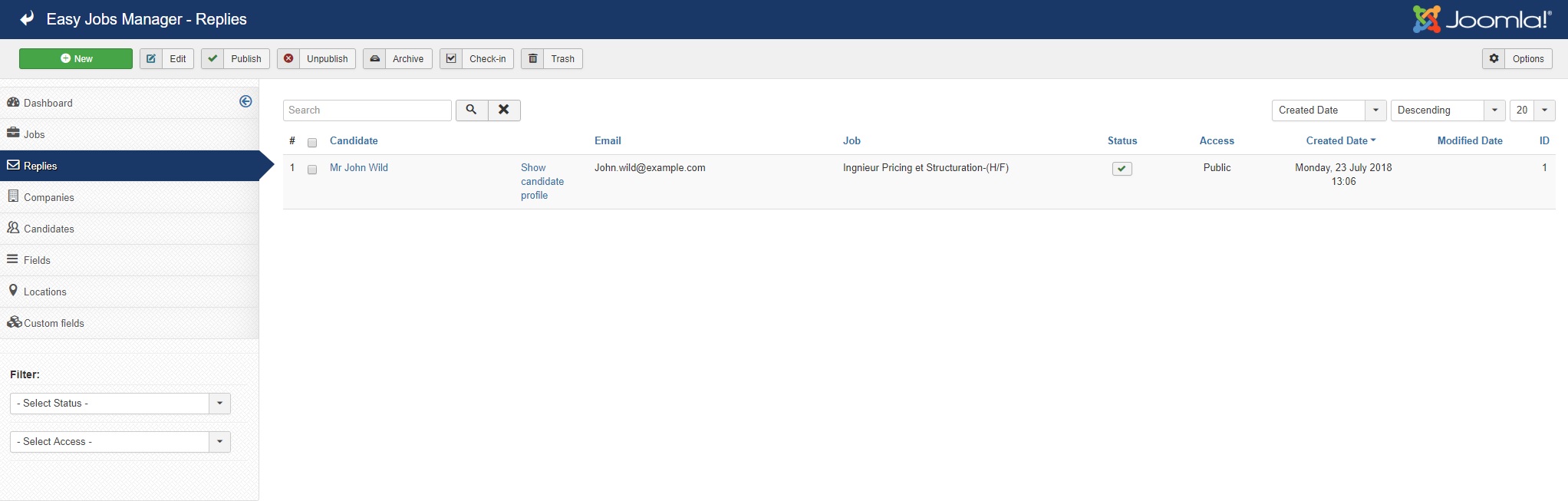
- this is a list of replies to jobs, you can add new reply , edit existing replies, publish and unpublish and more ...
3) Companies
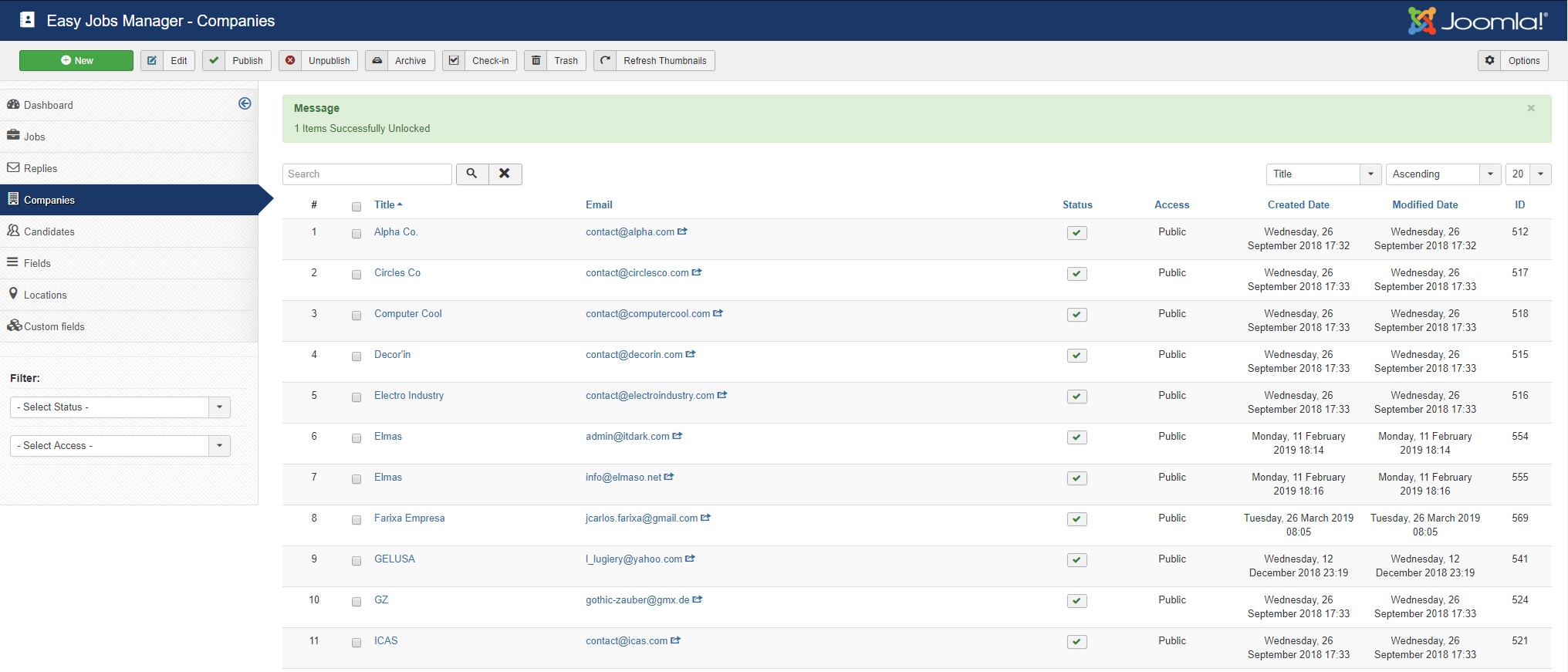
- this is a list of registered companies
- use frontend company registration to create new companies that will be able to login
- at least one item is required to create a new job
Note: companies have same ids as associated core user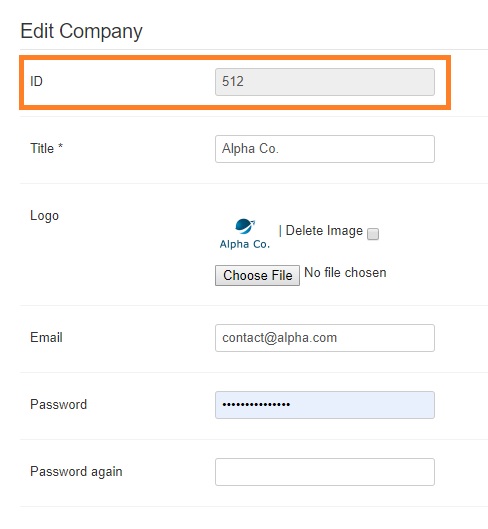
4) Candidates
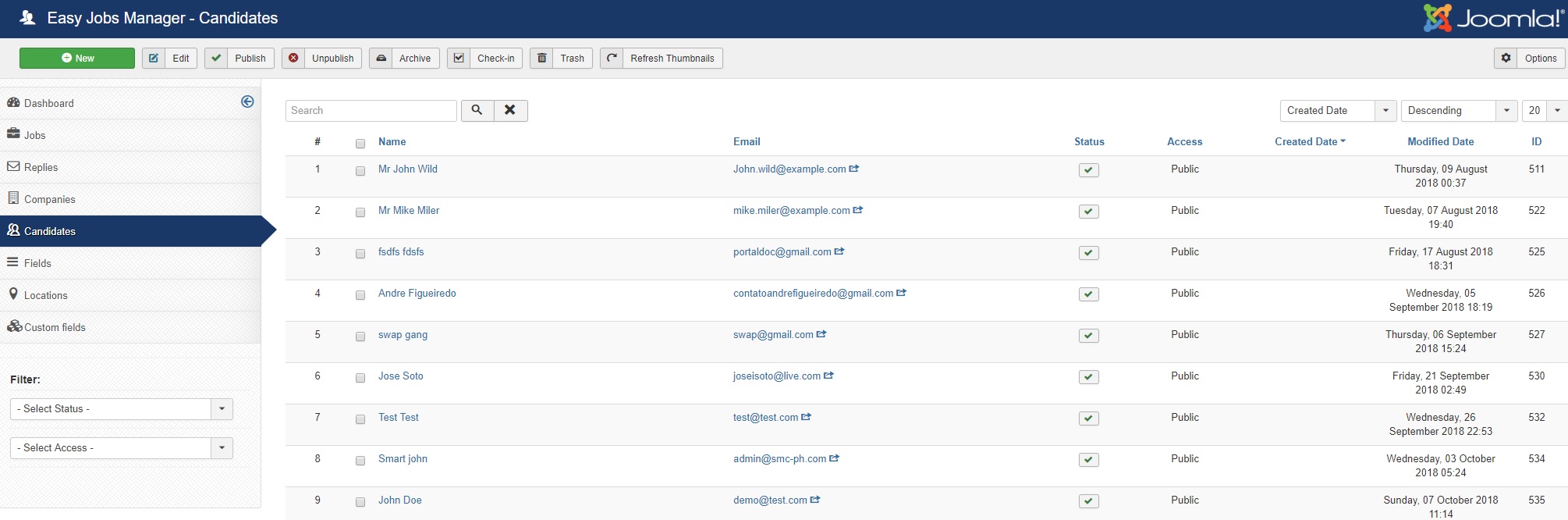
- this is a list of registered candidates
- use frontend candidate registration to create new candidates that will be able to login
Note: candidates have same ids as associated core user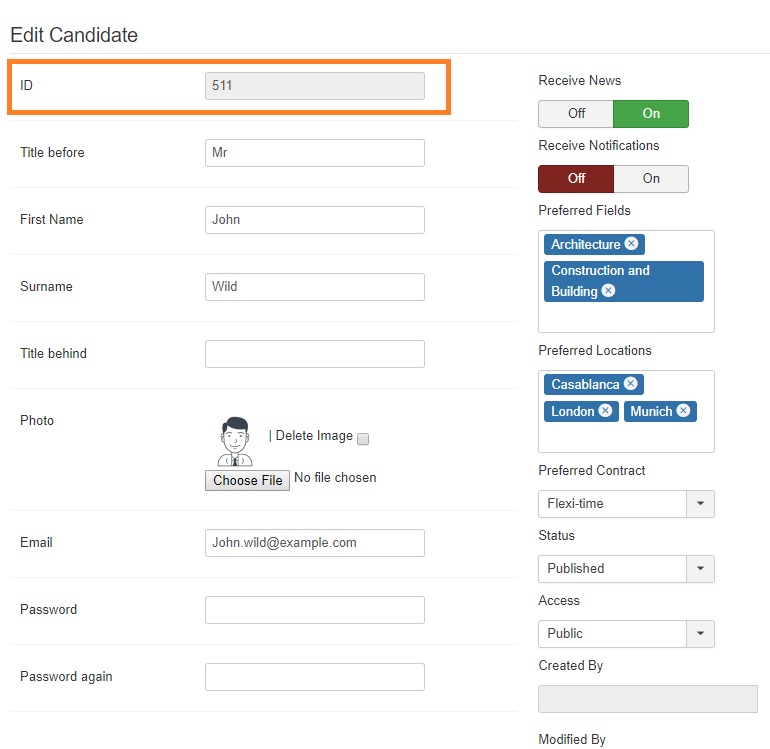
5) Fields
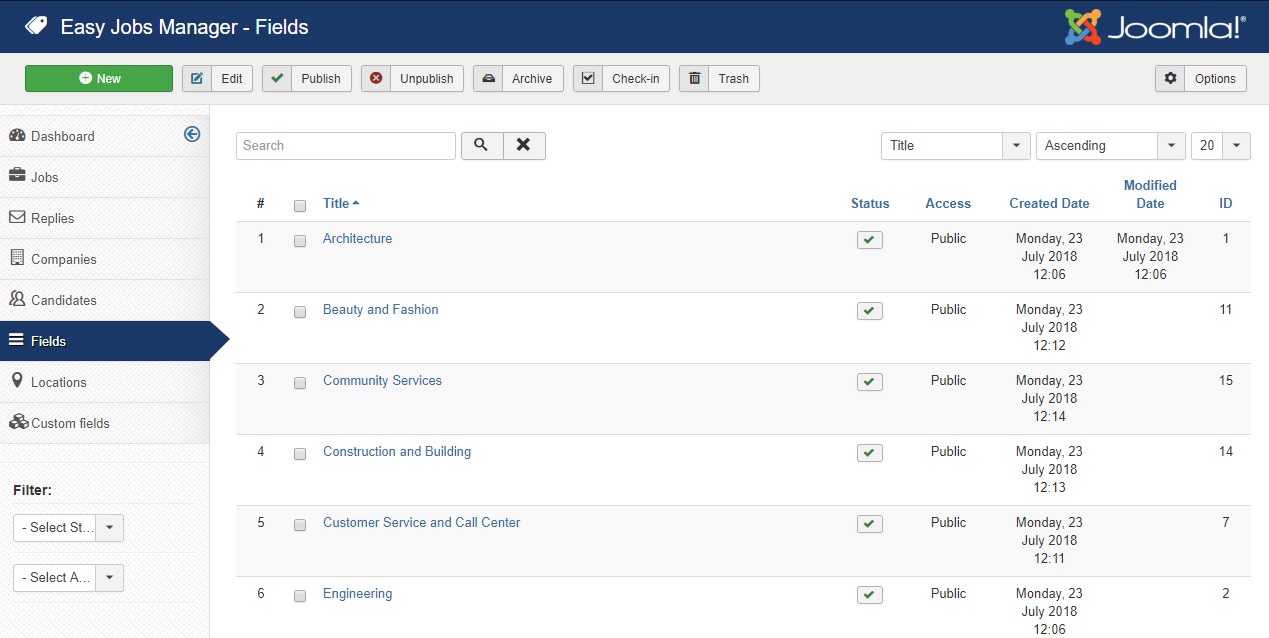
- you can create different fields of jobs (IT, Automotive, Logistics, etc.). At least one item is required to create a new job.
6) Locations
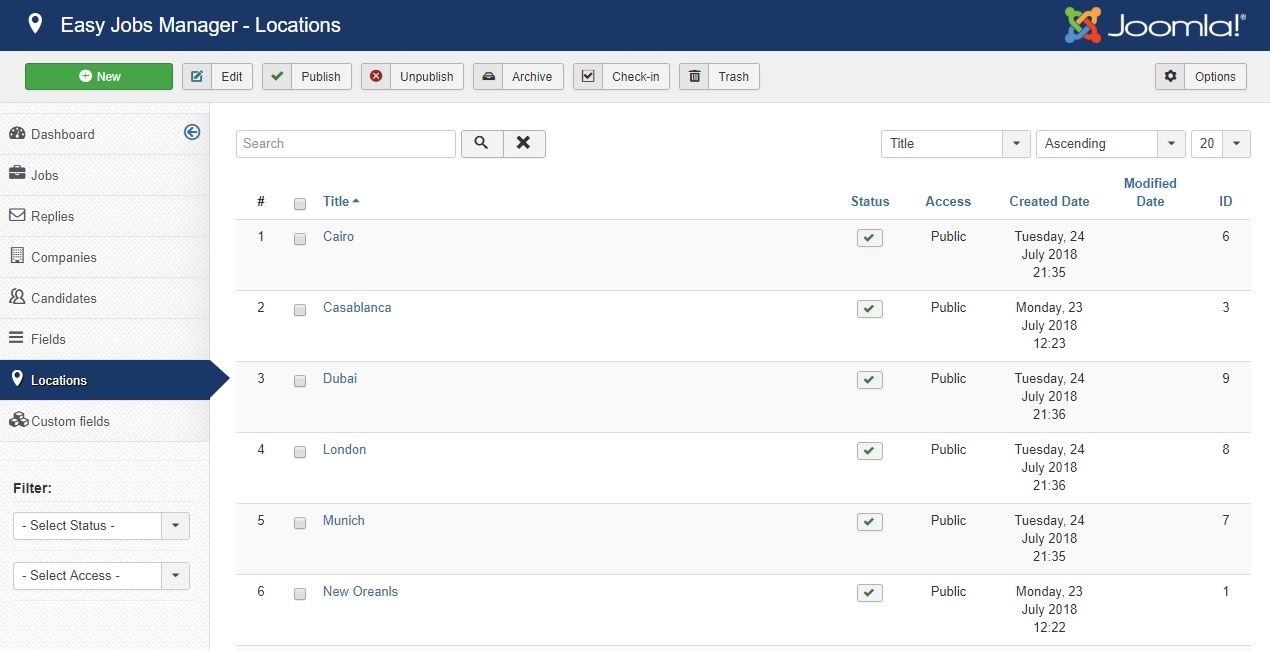
- You can create different locations, i.e. countries or regions. The possibility of creating a tree of countries and cities is in preparation. At least one item is required to create a new job.
7) Custom fields
Custom field are a feature which enables you to change the fields you see in the company registration / profile and candidate registration / profile. In the filter on the left, you can filter the following parameters of the custom fields.
Note: First you need to choose fields target to select fields target type (company, job or reply ...)
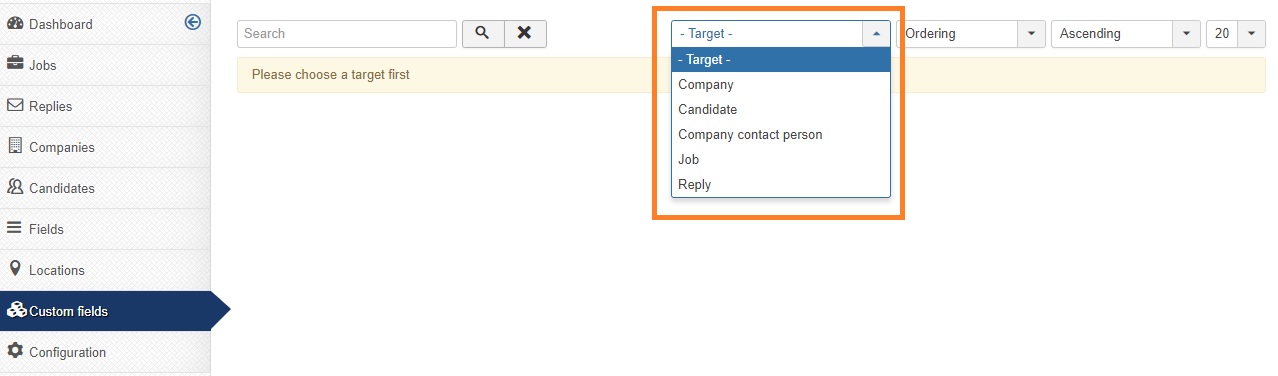
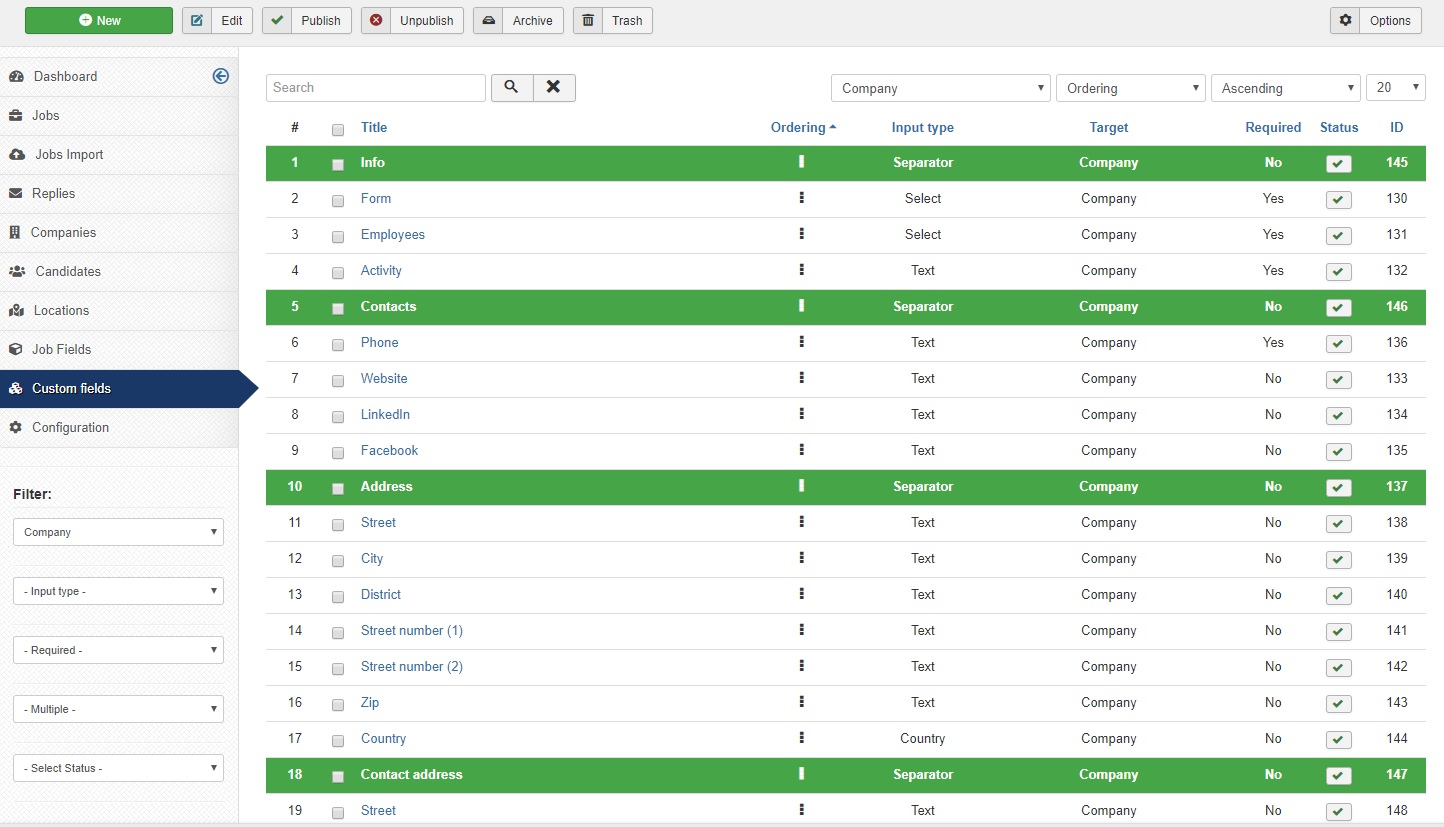
Filtering custom fields
- Target: there is one list of custom fields, which can be common for more targets (targets are type of items for which this custom field is used for)
- Input type: filter according to the input type (textfield, radio, etc.)
-
Required: selects that are not required will have empty choice prepended. Files/Images that are required are impossible to delete (this rule does not apply in backend)
- Multiple: filter multiple or non-multiple fields
- Status: filter according to statuses (published,unpublished, etc. )
Select options
- For select and radio input type enter one choice per line into select options textarea. If you want different value than text, enter value;text into the row (otherwise enter just text on each row). Choices with empty values are skipped
- The Language and Country input type has its choices defined in textareas in the component options/other
Ordering custom fields
- When filtered and ordered properly, the ordering feature will be enabled and you can order the fields for chosen target (drag&drop in Joomla 3 or the ordering arrows in Joomla 2.5)
Notes
- Image custom fields respect media settings for the Logo (resizing + file types + stored in logos folder)
- File custom fields respect media settings for Files (file types + stored in files folder)
- All published custom fields are shown. There is no way yet to make hidden or system fields, that users would fill out but won't be visible.